 NeoServer ManualFAQ & Troubleshooting
NeoServer FAQ: SSH, Containers, Metrics and Widgets
Set up NeoServer SSH access and troubleshoot empty container lists, GPU and CPU temperature readings, terminal copy mode, and server widgets.
NeoServer connects to your server over SSH and offers a terminal, file browser, monitoring dashboard, and container controls. The information it can show depends on what your server exposes to the connected account. Start by confirming that SSH works, then diagnose individual features.
Connect a server
Add a server with its hostname or IP address, SSH port, username, and your password or private key. On the first connection, compare the server’s host-key fingerprint with a trusted source before accepting it. For a machine on your home network, use its local address; from outside, arrange a VPN or another authorized route first. NeoServer does not make a private server publicly reachable.
Why is the container list empty?
NeoServer supports Docker and Podman, but the SSH account must be allowed to query the container runtime. Run docker info or podman info as the same user in NeoServer’s terminal. If that command fails, fix the server-side runtime or account permission first. On Linux, Docker socket access is highly privileged: follow your distribution’s documented group or rootless-Docker setup, rather than making the socket writable by everyone. Restart the SSH session after changing group membership.
Why are GPU or CPU temperatures missing?
For NVIDIA GPU metrics, install a compatible NVIDIA driver and confirm that nvidia-smi runs for the SSH account. NeoServer cannot invent GPU utilization if that command is unavailable. CPU temperature likewise requires a sensor exposed by the host. Virtual machines often do not expose a physical sensor. On supported Linux hosts, check whether sensors from lm-sensors returns a reading. If no reading exists, leave the metric unavailable rather than interpreting a placeholder as a measured temperature.
Use the terminal and widgets
Fonts, themes, gestures and the keyboard bar are covered in Terminal Settings.
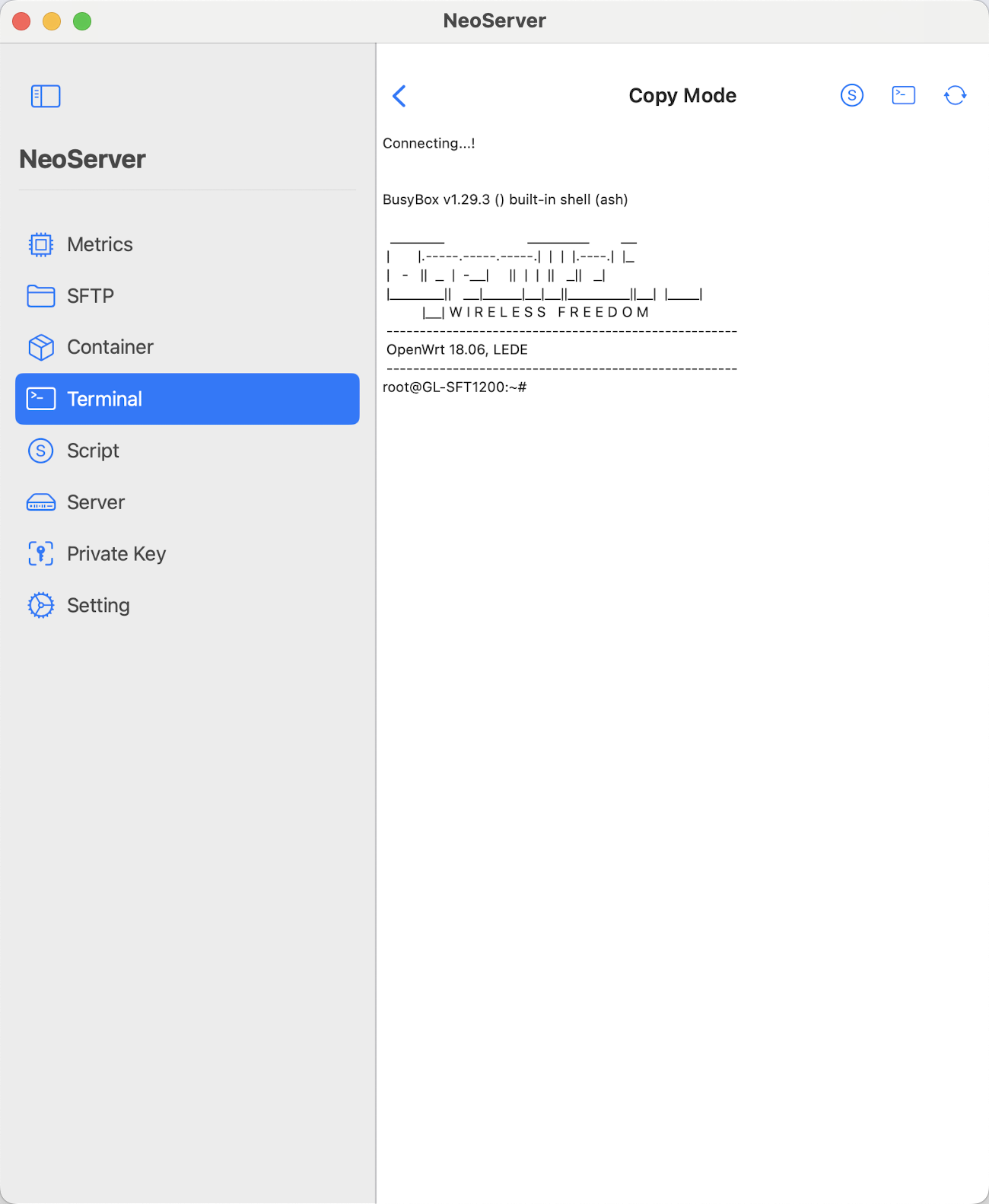
Tap the terminal’s Copy Mode icon to select and copy output; tap it again to return to normal terminal input. This is useful because normal swipes and taps are sent to interactive shell programs.
To add a widget, long-press an empty area on the iPhone Home Screen, choose Add Widget, search for NeoServer, and select a size. Widget availability depends on the installed iOS version and the app’s current widget support. If data is blank, open NeoServer and verify that the saved server still connects.
Customize server-side metrics
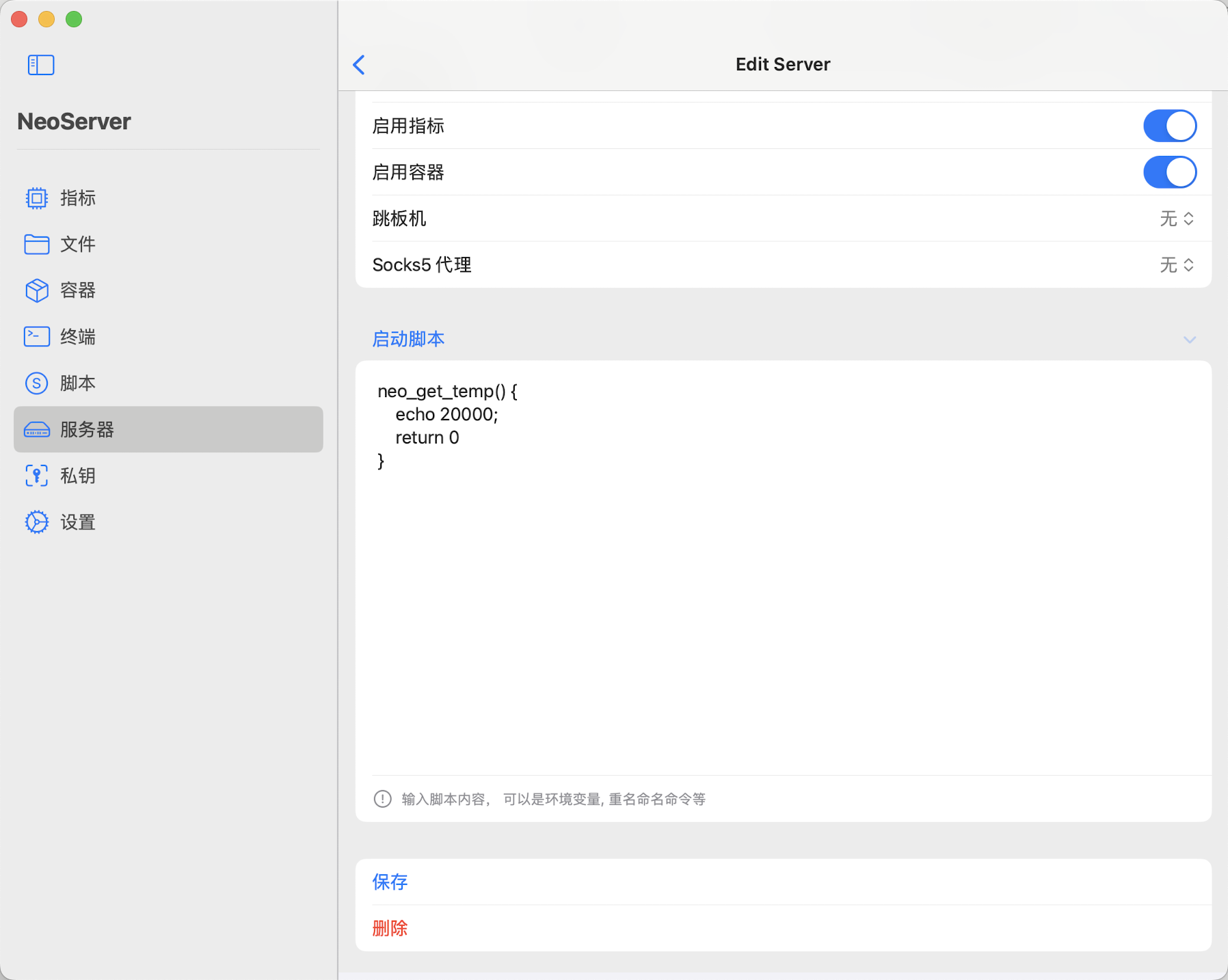
NeoServer can use commands in the server startup script to adjust how it reads certain values. Test a command in the terminal first, then add it to that server’s startup script. For example, a custom neo_get_df function can return only the mounted filesystems you want shown:
neo_get_df() {
  df -T | head -n 1
  df -T | grep -E 'CloudFS|vda1'
}
df -T is for Linux; use an appropriate df option on other systems. Keep the header and at least one data row, and verify that the output matches your host. Avoid returning a fabricated temperature from neo_get_temp: it would look like a real sensor reading.
For focused help, read the NVIDIA GPU guide or Wake-on-LAN guide.